Alexa, Google Home
and Claude.
Lumos smart switches work with the voice assistant you already have. Connect it once from the meshams app, and every key on every panel answers to its own name.
What each one can do
The panel and the meshams app do all of this. This is what you can do by voice or by asking Claude.
| Alexa | Google Home | Claude | |
|---|---|---|---|
| Switch any key on or off | Yes | Yes | Yes |
| Switch the fan on or off | Yes | Yes | Yes |
| Set fan speed 1 to 4 | No | No | Yes |
| Show whether something is on | Yes | Yes | Yes |
| Switch a whole room in one go | With an Alexa group | With a Google Home room | Yes |
| Switch something at a set time | With an Alexa routine | With a Google routine | Yes |
Amazon Alexa
Each Lumos key shows up in the Alexa app with its own name, and fans show up as fans. Ask any Echo speaker, the Alexa app or a Fire TV.
Connect it
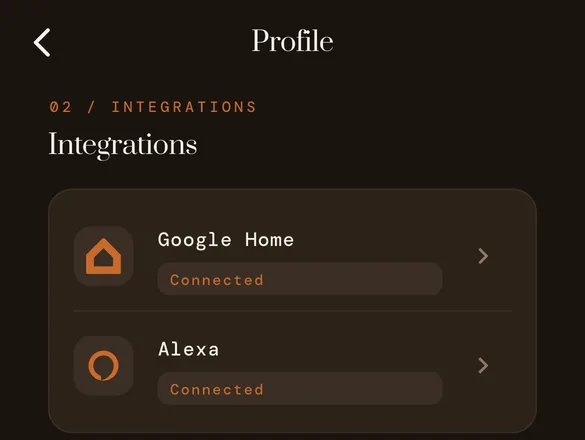
- Open Profile, then Integrations, in the meshams app.
- Choose Alexa and sign in with your Amazon account.
- Say "Alexa, discover devices", or wait for your keys to appear.
Try saying
- "Alexa, turn on the alley light."
- "Alexa, turn off the fan."
- "Alexa, turn off the geyser."
Google Home
Each key appears in the Google Home app as a switch you can put in a room. Ask Google Assistant on your phone, a Nest speaker or a Nest Hub.
Connect it
- Open Profile, then Integrations, in the meshams app.
- Choose Google Home and sign in with your Google account.
- Your keys appear in the Google Home app; place them in rooms.
Try saying
- "Hey Google, turn off the chandelier."
- "Hey Google, turn on the bedroom light."
- "Hey Google, turn off the living room."
Claude
The meshams connector lets Claude read and control your home in plain language. It is the only assistant here that can set fan speed and create timed actions.
Connect it
- Create a key in your meshams owner dashboard.
- Add the meshams server to Claude Desktop.
- Ask Claude about your home.
Try saying
- "Set the bedroom fan to speed 2."
- "Turn off everything in the living room."
- "Turn the geyser off at 10 pm."
Alexa, Google Home and Claude: your questions.
Do Lumos smart switches work with Alexa?
Yes. Connect Alexa from Profile, Integrations in the meshams app. Every key then appears in the Alexa app under the name you gave it, and you can say "Alexa, turn on the chandelier".
Do they work with Google Home and Google Assistant?
Yes. Connect Google Home from the same Integrations screen. Your keys appear in the Google Home app as switches, and "Hey Google, turn off the geyser" works from a phone or a Nest speaker.
Can Alexa or Google change my fan speed?
No. Alexa and Google Home switch the fan on and off. The speed, 1 to 4, is set on the panel, in the meshams app, or by Claude. See the smart fan regulator page for how the fan key works.
How does Claude control my home?
meshams runs a connector (an MCP server) that Claude can use with your permission. Create a key in your meshams account, add the meshams server in Claude Desktop, and ask in plain words: "turn off everything in the bedroom" or "set the living room fan to 2".
Do I need Alexa or Google to use Lumos?
No. The panel works as a touch switch on its own, and the free meshams app controls everything from your phone. Voice assistants are optional.
Get Lumos on your walls.
A meshams technician fits the panels in place of your switchboards and sets up the app with you. Connecting Alexa or Google Home takes a minute after that.
Get a free quote