Your switches, fans and
schedules, on your phone.
Lumos smart switches replace the switch panels on your wall. The free meshams app for Android and iPhone is where you name them, set the fan speed, time them, and share them with your family. Every screen below is from the app as it is today.
Every key named, every room in one place.
Each key on a Lumos panel shows up in the app under the name you give it: Alley Light, Chandelier, Geyser. Panels are grouped by room, so you can see the whole house at a glance and switch anything from wherever you are.
- A key controls whatever is wired to it: a light, an exhaust fan, a TV point, a socket.
- A geyser goes on the Single Switch 16A, made for heavy loads.
- Filter the device list by room.
- The panel on the wall keeps working as a normal touch switch.
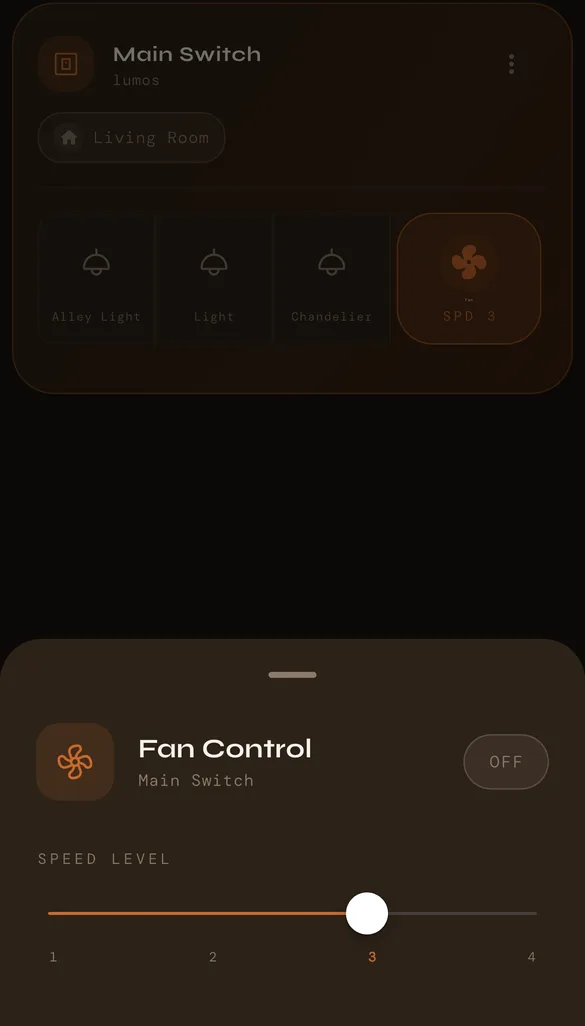
Four real fan speeds, not just on and off.
A Lumos fan key is a smart fan regulator as well as a switch. Tap it in the app and slide between speeds 1, 2, 3 and 4, or switch the fan off. The same speeds are on the panel, so nobody needs the app to use the fan.
- Speeds 1 to 4 from the app and the panel.
- Alexa and Google Assistant switch the fan on and off.
- Claude can set the speed for you through the meshams connector.
Switch things on or off at the time you choose.
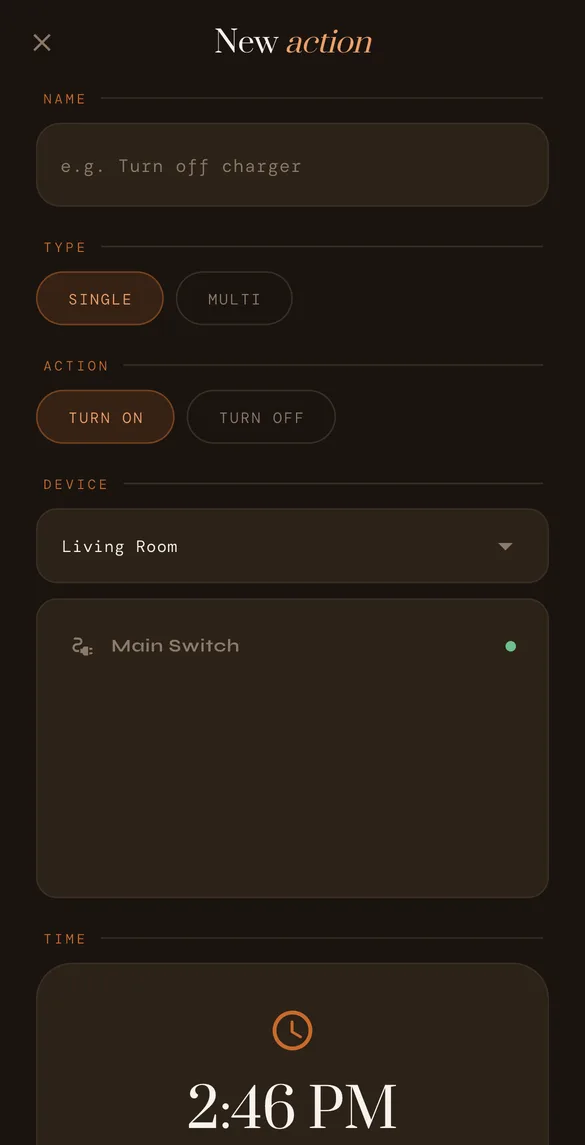
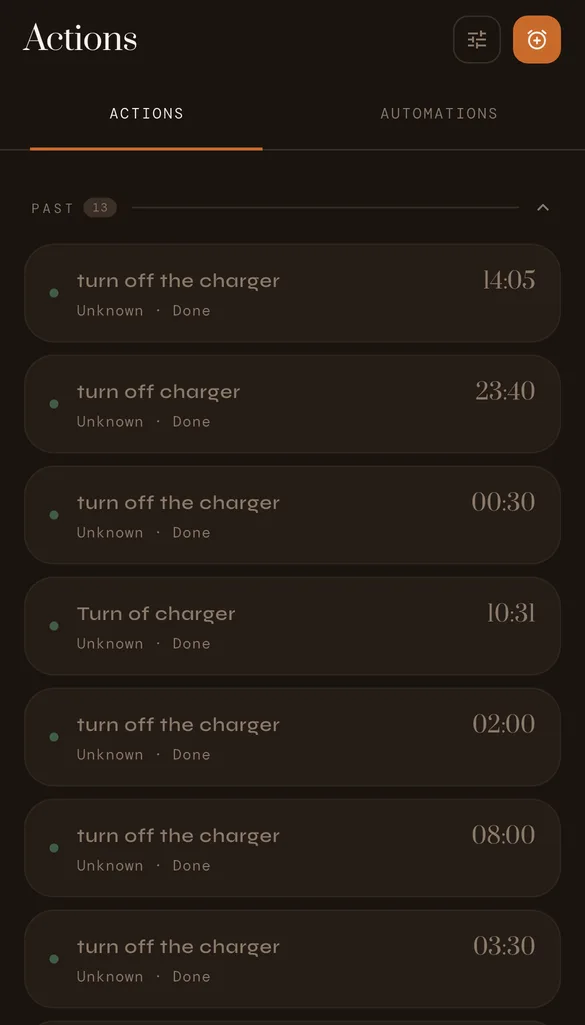
Give an action a name, pick a key and a time, and choose whether it should turn on or off. The app does it at that time, whether or not your phone is with you, and keeps a list of what ran.
Choose Multi and the key switches on at the time you set, then off again after the number of minutes you choose: a geyser that runs for 20 minutes before your shower, or a phone charger that stops overnight.
- Single: one on or off at a set time.
- Multi: on at a set time, off after the minutes you choose.
Let the room decide.
With a meshams sensor in the room, an automation switches a Lumos key when the temperature or humidity crosses a level you set: the fan comes on above 30°C and goes off again when the room cools, or an exhaust runs when the bathroom gets humid. Automations sit next to your timed actions in the Actions tab, and you can pause any of them.
One home, everyone's phone.
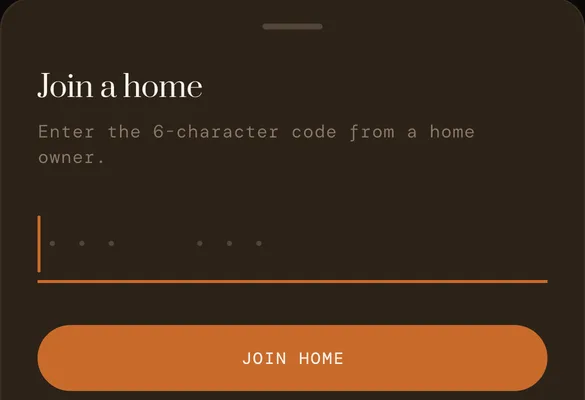
The home's owner creates an invite in the app and gets a 6-character code. Anyone in the family enters it under Join a home in their own meshams app, and the home, its rooms and its switches appear on their phone.
- Each code works for 24 hours.
- Making a new code cancels the old one.
- Everyone uses their own login; nobody shares a password.
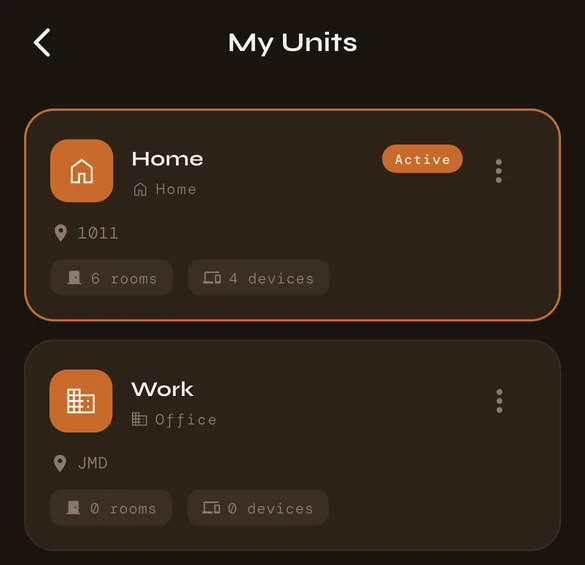
Home, office, your parents' flat.
Each place is a unit in the app with its own rooms and devices. Add your home, your office or your parents' flat, and switch between them from My Units. Useful when you look after a home you don't live in.
Alexa, Google Home and Claude.
Link Alexa and Google Home from your profile and every key can be switched by voice. Claude goes further: it can set fan speeds, switch a whole room and create timed actions for you.
What each assistant can do →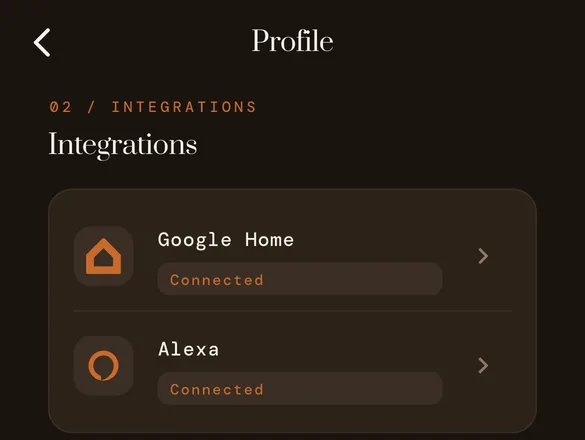
The meshams app: your questions, answered.
Can I control the fan speed from my phone?
Yes. Open the fan key in the meshams app and slide between speeds 1 and 4, or switch it off. The same speeds are on the panel itself. Alexa and Google Assistant switch the fan on and off.
Can I turn the geyser off automatically after a few minutes?
Yes. Create a Multi timed action: pick the geyser key, the time it should come on and how many minutes it should run. The app switches it on at that time and off when the minutes are up.
How do I give my family access to the home?
As the owner, create an invite in the app. It gives you a 6-character code that works for 24 hours. Your family member enters it under Join a home in their own meshams app, and the home appears on their phone.
Can one account control a home and an office?
Yes. Each place is a unit in the app, such as Home and Work, with its own rooms and devices. Switch between them from My Units.
Does the app work with Alexa and Google Home?
Yes. Link Alexa and Google Home from Integrations in your profile, and every key can be switched on and off by voice. Claude can also control your home, including fan speed, through the meshams connector.
See it in your own home.
A meshams technician fits Lumos in place of your existing switch panels and sets up the app with you before leaving.